
Setting Up Your Practices
Create and manage your practice locations, contact details, and opening hours
A practice in Prism represents a physical location where you operate. Prism supports multiple practices under a single account, so you can manage all your locations from one place.
Creating a Practice
Navigate to Admin → Settings → Practices tab to manage your practices.
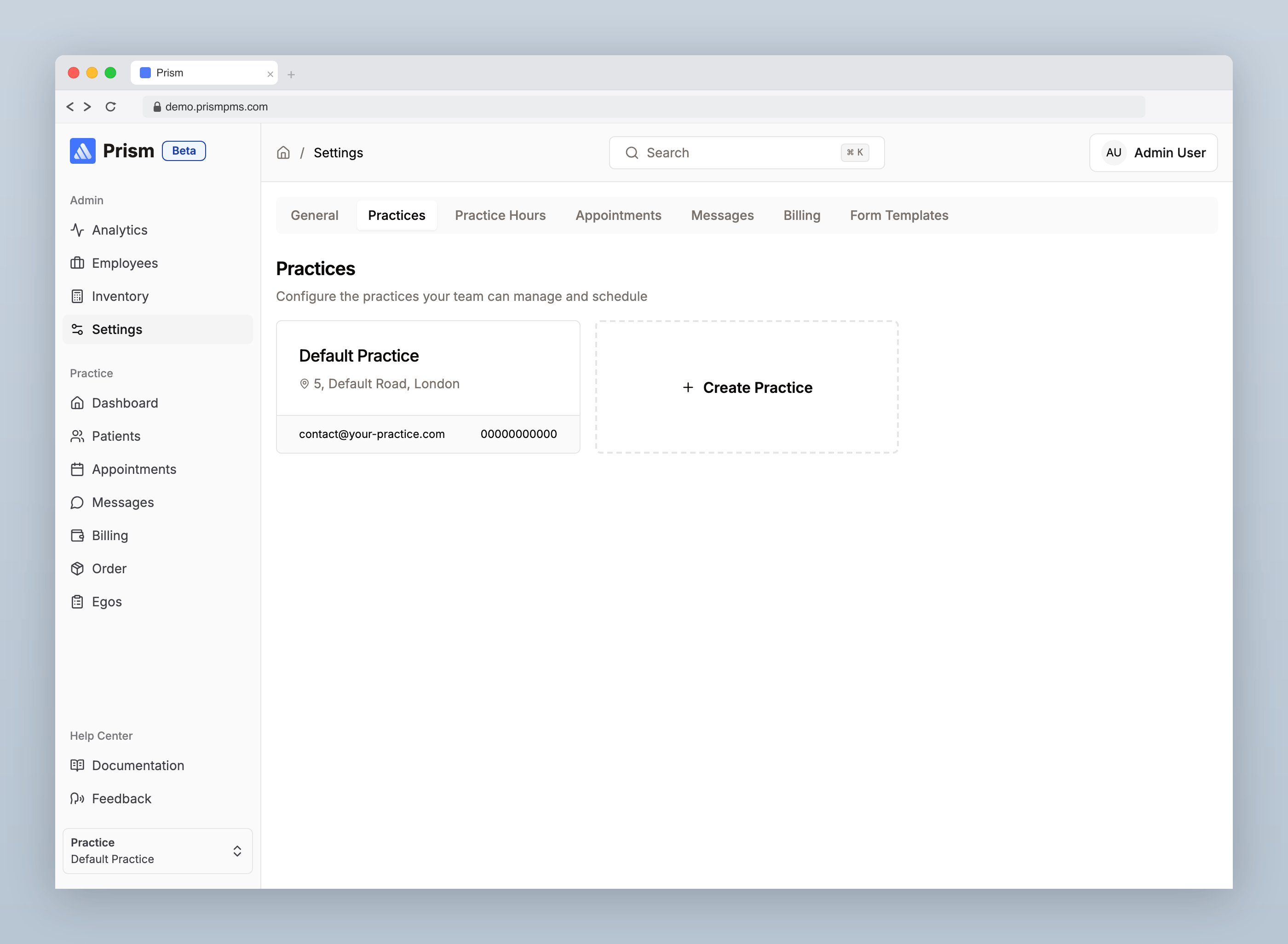
Click New Practice and fill in the following fields:
- Practice Name — the display name for this location
- Practice Address — the full street address
- Phone Number — a valid UK phone number
- Email — contact email (optional)
- PCSE Practice Code — your practice's PCSE identifier
You'll also be prompted to enter your PCSE credentials (email and password) which are used for GOS claim submissions.
Editing a Practice
Click on any existing practice in the list to update its details. All fields can be modified after creation.
Setting Practice Hours
Navigate to Admin → Settings → Practice Hours tab to configure when each practice is open.
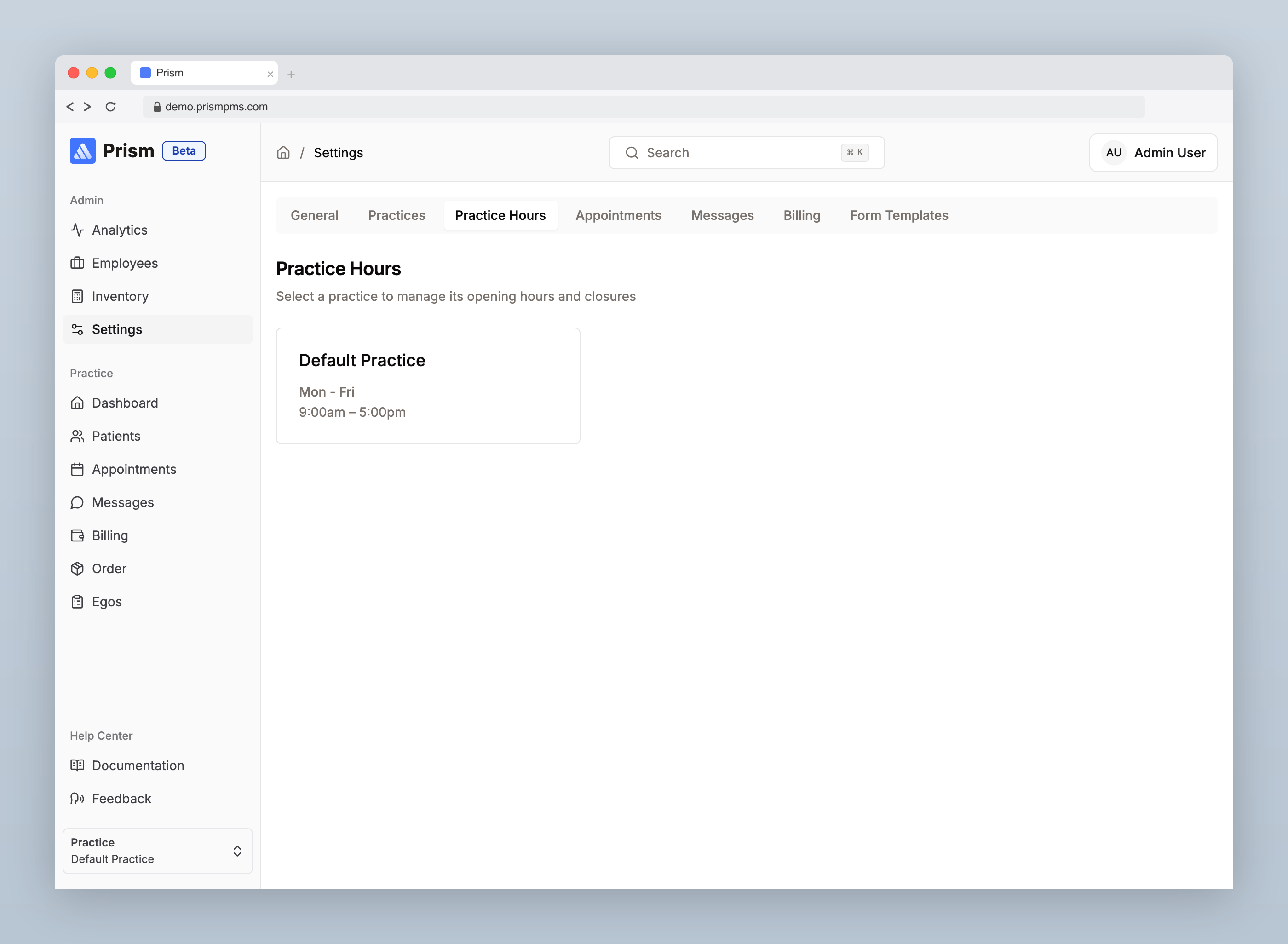
Weekly Hours
For each practice, set the recurring weekly schedule:
- Day of the week — Monday through Sunday
- Start time — when the practice opens
- End time — when the practice closes
Days without hours configured are treated as closed.
Closures & Exceptions
Use the exceptions section to set dates when the practice will be closed outside of the regular schedule — for example, bank holidays or staff training days. Add a date range and the practice will be marked as unavailable for that period.
Last updated on 18/02/2026