
Configuration
Setting Up Your Inventory
Add products, variants, and manage stock levels across your practices
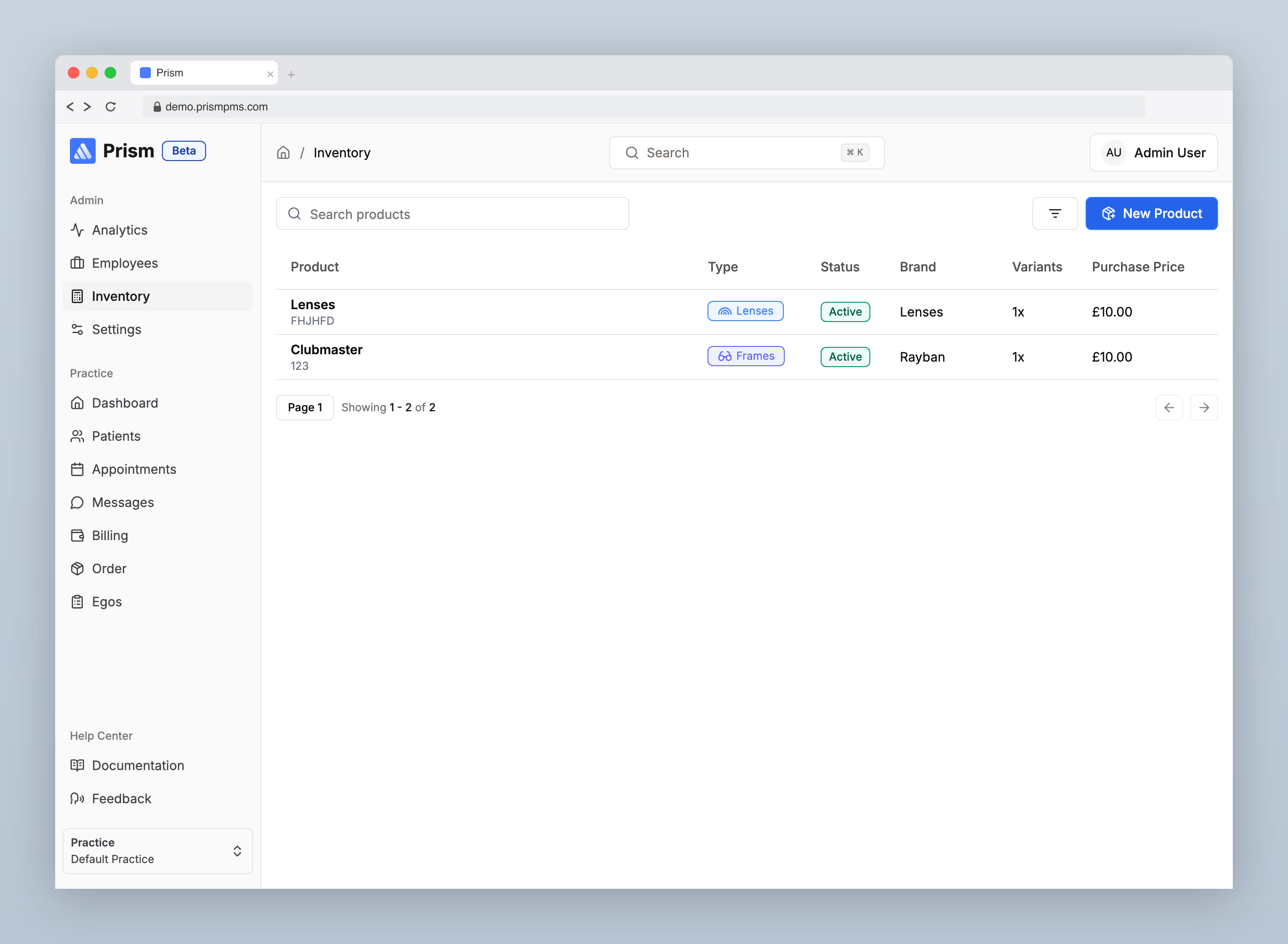
Navigate to Admin → Inventory to manage your product catalogue.
Creating a Product
Click New Product and fill in the following fields:
- Product Name — the display name (e.g. "Ray-Ban Wayfarer")
- Brand — the manufacturer or brand name
- Model Number — the model identifier (auto-converted to uppercase)
- Description — optional product notes
- Purchase Price — what you pay for this product, entered in pounds
- Product Type — choose from: Frames, Lenses, Contacts, Sunglasses, or Accessories
Product Variants
Each product can have multiple variants representing different colour and size combinations. For each variant, you'll set:
- SKU — a unique stock-keeping unit identifier
- Colour — select from predefined options (Black, Blue, Brown, Clear, Gold, Green, Grey, Orange, Pink, Purple, Red, Silver, Tortoiseshell, White, or N/A)
- Size — Small, Medium, Large, or One Size
- Price — the selling price for this variant, entered in pounds
- Made to Order — toggle on if this variant is manufactured on demand rather than stocked
Stock Management
Stock is tracked per variant, per practice. For each variant you can:
- Change Stock — adjust the available quantity at a specific practice
- View Stock — see current stock levels across all your practices
This lets you manage inventory independently at each location while keeping everything visible from one place.
Product List
The product list shows all your items with their name, model number, type, brand, variant count, purchase price, and active status. Use this view to quickly find and manage your catalogue.
Last updated on 18/02/2026