
Setting Up Appointments & Services
Configure appointment types and standard services with pricing, durations, and color coding
Navigate to Admin → Settings → Appointments tab to manage your services.
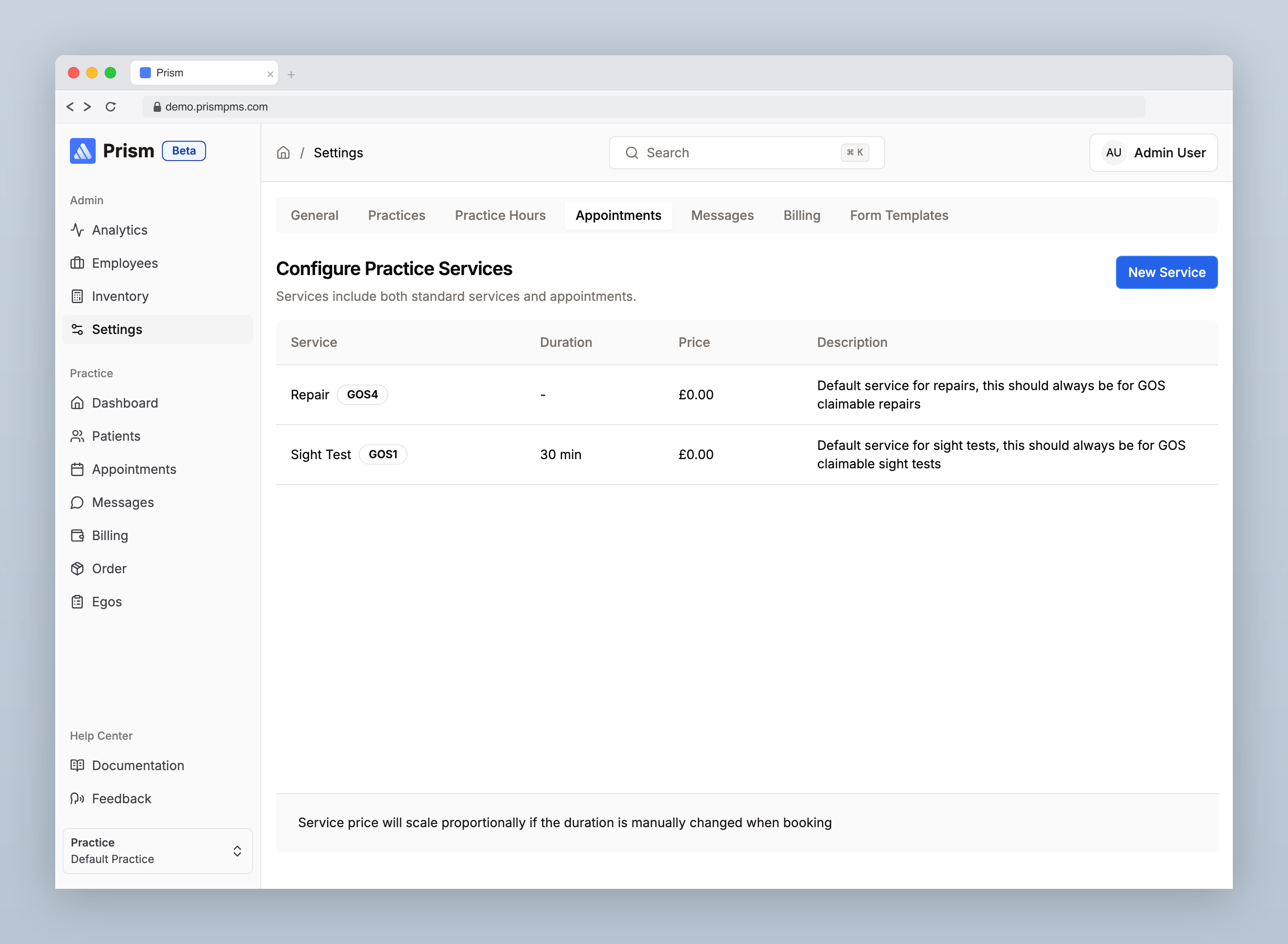
Prism has two types of services: Appointment Services (tied to calendar bookings) and Standard Services (general billable services).
Appointment Services
Appointment services appear as bookable slots in the calendar. Click New Appointment Service to create one with the following fields:
- Name — the service name (e.g. "Eye Examination", "Contact Lens Fitting")
- Duration — length in minutes
- Price — the fee charged, entered in pounds
- Description — optional notes about the service
- Color — choose from blue, indigo, pink, red, orange, amber, or emerald for visual organisation in the calendar
- Form Template — optionally link a clinical form to this appointment type
- Active Practices — select which practices offer this service
- GOS 1 — toggle if this is a GOS 1 sight test (only one appointment type can be marked as GOS 1)
Standard Services
Standard services are billable items that aren't tied to a calendar slot — for example, repairs or adjustments. Click New Standard Service to create one:
- Name — the service name
- Price — the fee charged, entered in pounds
- Description — optional notes
- Color — choose a color for visual organisation
- Active Practices — select which practices offer this service
- GOS 4 — toggle if this is a GOS 4 service
Color Coding
Each service can be assigned a color to help visually distinguish them in the calendar and throughout the platform. The available colors are:
- Blue, Indigo, Pink, Red, Orange, Amber, Emerald
Practice Assignment
Services can be enabled or disabled per practice. When creating or editing a service, use the Active Practices field to control which locations offer it.
Last updated on 18/02/2026