
Inviting Your Employees
Add team members, assign roles, and configure working hours
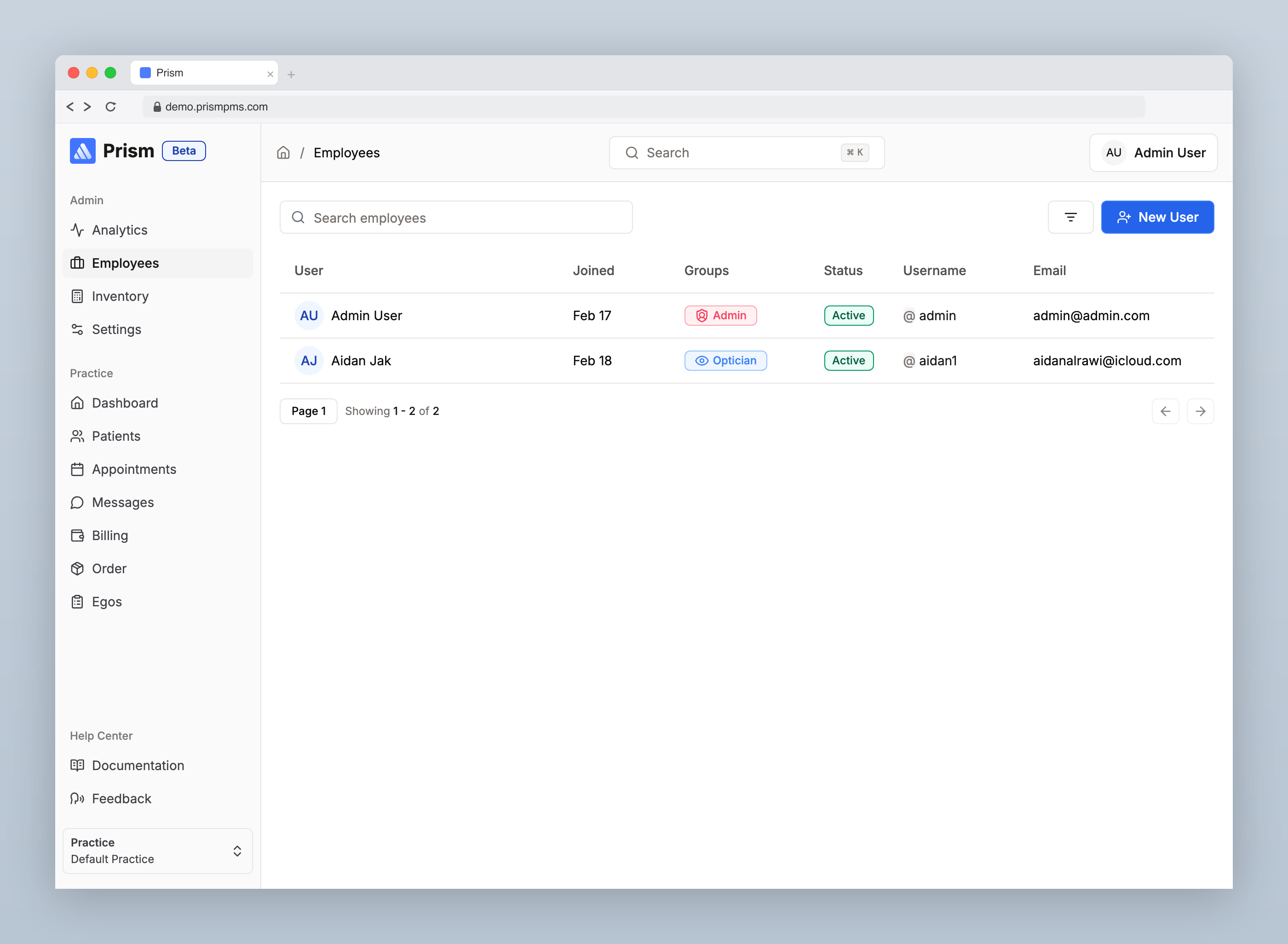
Navigate to Admin → Employees to manage your team.
Roles
Every employee is assigned one or more roles that control what they can access. Users can hold multiple roles — for example, an employee with both Optician and Support roles will have access to features from both.
- Admin — full access to everything, including analytics, employees, inventory, settings, patients, appointments, billing, messages, and all note types
- Optician — clinical workflow focused on optician notes, prescriptions, vouchers/EGOS, and appointments. Can read support notes but cannot access patients, billing, messages, or admin settings
- Support — front desk workflow covering patients, appointments, billing, messages, orders, and support notes. Can read optician notes but cannot access admin settings, inventory, or prescriptions (read-only)
Creating an Employee
Click New Employee and fill in the following fields:
- First Name — required, minimum 2 characters
- Last Name — required, minimum 2 characters
- Username — required, minimum 2 characters
- Email — a valid email address
- Role — select one or more roles (Admin, Optician, Support)
A password is auto-generated for the new employee. They will use their username and the generated password to log in for the first time.
Working Hours
Each employee can have individual working hours configured per practice. Navigate to an employee's profile and set their schedule:
- Day of the week — Monday through Sunday
- Start time — shift start
- End time — shift end
- Practice — which location the hours apply to
You can also add schedule exceptions for individual days off, holidays, or other absences.
Managing Employees
The employee list displays each team member with their name, username, email, join date, roles, and active status.
You can:
- Edit an employee's details or roles
- Deactivate an employee to revoke their access without deleting their record
- Filter the list by role or active/inactive status
Last updated on 18/02/2026